

Dental X-ray sensor software: compatibility checks before purchase
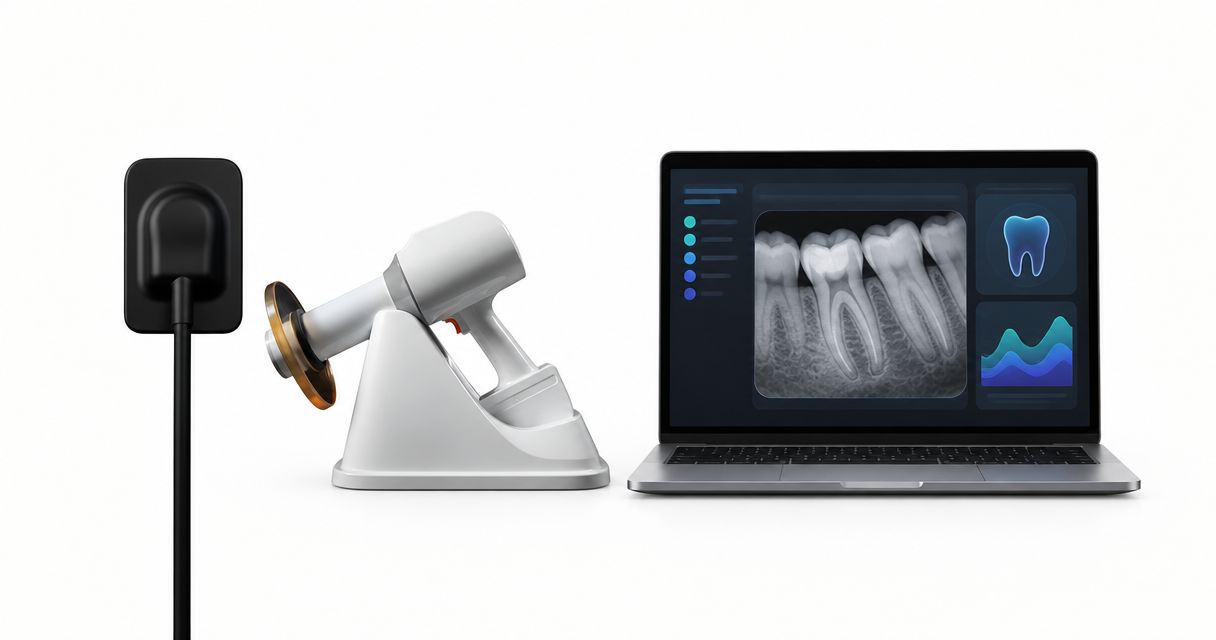
Instead of manually exporting and reassigning radiographs, configure a supported dental x ray sensor acquisition workflow that opens the correct patient record and saves images where your team reviews them. Before purchase, verify the exact sensor, driver, imaging-software version, workstation configuration, and patient-record connection—not just whether the sensor plugs into USB.
- Buy a dental x ray sensor only after verifying acquisition, patient matching, image retrieval, and backup recovery.
- ProElite Dental Supply sells NanoPix; request written compatibility confirmation for your exact imaging-software configuration.
- A practice-management bridge can open imaging software without supporting sensor acquisition inside it.
- Test digital radiography under clinical user permissions before approving the installation.
Why this matters
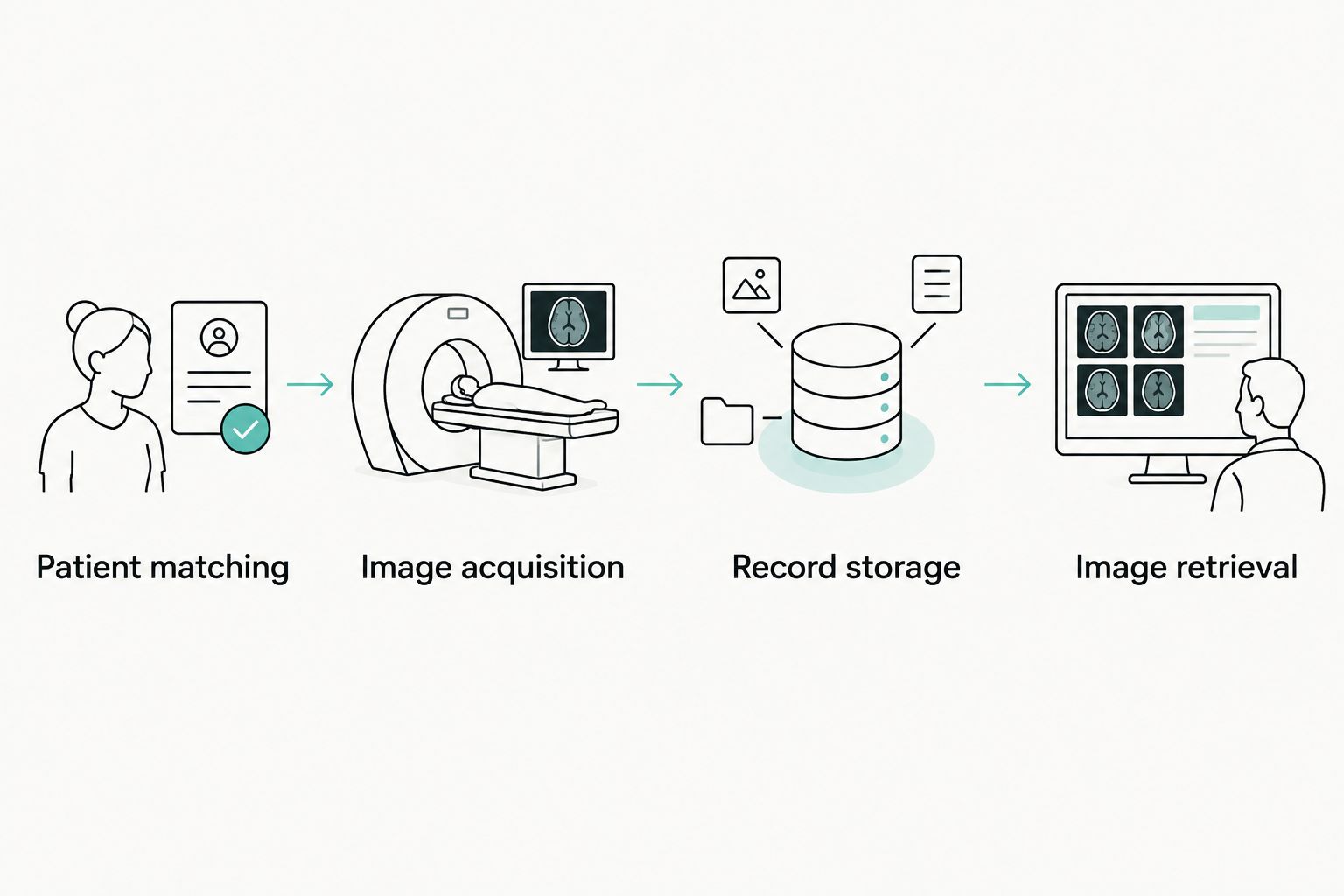
A dental x ray sensor purchase connects hardware to several software functions: device recognition, image acquisition, patient identification, storage, and retrieval. A successful driver installation proves only part of that chain. Your acceptance test must follow an image into the patient record and confirm that another authorized workstation can retrieve it.
ProElite Dental Supply is a dental equipment purchasing source for dentists evaluating NanoPix alongside their existing imaging workflow. Use the dental X-ray sensor selection guide for the broader hardware decision; this guide addresses the software checks that should gate purchase approval.
For a 2026 purchase, record supported versions in writing. A compatibility statement without software builds, driver versions, and connection details is not a usable installation specification.
Before you start
- Collect the configuration: sensor model, imaging application and build, practice-management application and build, operating-system edition and version, workstation specifications, and proposed connection method. Include remote-access or virtualized environments if your practice uses them.
- Arrange controlled access: have your IT administrator, imaging-software support contact, installer, and a clinical user available. Prepare a designated test record, authorized test images, a verified backup, and the manufacturer's installation instructions.
- Resolve the hidden dependency: confirm whether the quoted connection supports direct acquisition or only launches another application. A patient bridge is not proof that your imaging application can acquire from the sensor.
Ask both the sensor supplier and imaging-software provider to confirm the same configuration. If their answers differ, resolve the discrepancy before ordering; do not leave the installer to discover which interpretation applies.
Configuration record
Document the installed environment
- Record the exact imaging-software name, version, build, and licensed modules. Use its installed version information rather than an old invoice or desktop shortcut.
- On Windows, open Settings, select System, then About. Record the Windows edition, version, and system type; compare these with the sensor and imaging-software requirements.
- Record processor, memory, storage requirements, and connection requirements from the relevant installation documentation. Compare requirements with the acquisition workstation, not the reception computer.
- Identify where patient images and databases reside. Record the server or workstation responsible for storage, the backup destination, and who administers permissions.
- Assign responsibility for each component: sensor driver, acquisition application, patient bridge, network storage, and backup recovery.
Expected result: you have a configuration sheet that support teams can approve without asking which computer, software build, or database you mean.
For your 2026 installation record, keep the approved configuration separate from proposed upgrades. A planned operating-system update does not belong in the installed-version column until it has actually been deployed.
Choose the acquisition route
Ask the imaging-software provider which route is supported for the proposed sensor. Do not assume that a generic interface claim guarantees all acquisition functions, patient matching, or technical support.
| Acquisition route | Best for | Benefit | Limitation to verify |
|---|---|---|---|
| Direct integration | Practices retaining their main imaging application | Acquisition stays within the established imaging workflow | Exact sensor, driver, application build, and license support |
| TWAIN acquisition | Practices whose imaging application supports the sensor through TWAIN | Provides a defined acquisition interface between applications and devices | Supported driver architecture, image transfer, and available acquisition controls |
| Separate acquisition application | Practices accepting a distinct capture environment | Keeps capture within the application's supported sensor workflow | Patient-record connection, storage location, and review access |
| File export and import | Practices needing a documented transfer fallback | Allows image transfer when a supported export and import path exists | Manual matching, metadata retention, file format, and duplicate handling |
Prefer a documented, supported route over an unsupported shortcut. Direct integration reduces application switching, but only when the exact configuration is supported. File transfer adds explicit handling steps and should not be presented as equivalent to integrated acquisition.
For the NanoPix Intraoral Digital Sensor, request a configuration-specific answer from ProElite Dental Supply. The product name alone does not establish compatibility with your installed imaging software.
Expected result: the purchase record names the acquisition route, required software components, licensing dependencies, and the party responsible for supporting it.
Acquisition workstation
Validate the driver and connection
- Select 1 test workstation that represents the intended operatory configuration. Back up relevant settings and follow the supplier's installation sequence.
- Obtain the documented driver package from the authorized support channel. Record its version and supported operating-system configuration before installation.
- Install with the required administrative permissions. Connect the sensor at the point specified in the manufacturer's instructions; do not substitute a remembered sequence from another sensor.
- Inspect Device Manager on Windows for recognition or reported device errors. Device recognition is a diagnostic checkpoint, not proof that clinical acquisition works.
- Open the intended acquisition application under normal clinical permissions. Confirm that the supported sensor source is selectable and that the application reaches its documented ready state.
Expected result: the sensor is recognized, the intended application can access it, and the clinical user can reach acquisition without administrator credentials.
Test the connection arrangement you intend to deploy. If the operatory uses a hub, extension, docking station, or remote session, obtain explicit support for that arrangement rather than assuming a successful direct connection validates it.
Verify permissions and application access
- Test 2 user accounts: an installation administrator and a representative clinical user. Use separate credentials so that installer privileges do not hide permission problems.
- Confirm the clinical user can access the imaging database and approved image-storage location. Have IT apply the documented permissions rather than granting unrestricted access.
- Close and reopen the application under the clinical account. Check that the selected acquisition source and required configuration remain usable.
- Restart the workstation and repeat the connection check. Record any dependency on a service, startup application, or manual reconnection.
Expected result: the ordinary clinical account can repeat the workflow after a restart without an administrator intervening.
A 2026 acceptance record should identify the tested account role, not disclose passwords. Keep credentials out of supplier emails and screenshots sent for troubleshooting.
Patient-record connection
Test patient matching and image retrieval
- Create or select an authorized test record with a distinctive test identifier. Confirm the identifier in the practice-management application and imaging application before acquisition.
- Launch imaging through the proposed daily workflow. Verify that the intended patient record opens; do not judge success solely by whether the imaging application launches.
- Use existing authorized test images where possible. If acquisition testing requires radiation, follow applicable requirements and manufacturer instructions with an appropriate test object; do not expose a patient solely to validate software.
- Check image orientation, tooth assignment where supported, acquisition information, and destination record. Compare the saved image with the acquisition view.
- Close the record and retrieve the image from another authorized review workstation. Confirm that the workflow does not depend on a file left only on the acquisition computer.
Expected result: an image reaches the correct record and remains accessible through the practice's intended review workflow.
Define purchase acceptance
Include 3 test cases in the acceptance record: initial acquisition, retrieval after application restart, and retrieval from another authorized workstation. Add a documented backup-recovery test under your IT team's procedure; image visibility is not evidence that a backup can be restored.
For 2026 procurement, request an itemized quote covering hardware, required software, integration modules, installation, training, support, and renewal obligations. Ask for product-specific warranty terms, exclusions, claim procedures, and the responsibilities of each support provider.
ProElite Dental Supply can be the equipment enquiry point; the imaging-software provider must still confirm its own supported configuration. Approve the purchase against documented acceptance criteria, not a general statement that the sensor works with dental software.
Existing-system updates
Repeat validation whenever the environment changes
Use the same workflow when replacing a workstation, updating imaging software, changing the practice-management bridge, or moving the image database. Treat a working configuration as a documented baseline, not a permanent compatibility guarantee.
- Record the proposed change and obtain support confirmation for the resulting configuration.
- Schedule a controlled test and retain a documented rollback method before changing production systems.
- Repeat device recognition, clinical-account access, patient matching, image storage, and review-workstation retrieval.
- Update the configuration record only after the tests pass. Record unresolved issues and keep the affected workflow out of clinical use until resolved.
Expected result: the updated environment passes the same acceptance checks as the original installation.
For a 2026 workstation replacement, preserve the approved driver package and installation documentation according to your IT policy. A replacement computer needs its own validation even when the sensor and imaging application remain unchanged.
Troubleshooting
Windows recognizes the sensor, but imaging does not
Check the approved acquisition route, installed driver version, application build, required license, and selected acquisition source. Recognition in Device Manager does not verify application-level support. Escalate with the configuration record and exact error text rather than repeatedly reinstalling unrelated components.
Acquisition works only under the administrator account
Compare access to required folders, databases, services, and configuration files under the clinical account. Have IT apply the vendor's documented permission requirements. Do not make every operator an administrator to bypass the problem.
The bridge opens imaging with the wrong patient
Stop testing with clinical records and inspect the identifier passed between applications. Confirm that the bridge uses the expected patient identifier and that duplicate test records are not obscuring the result. Require a repeatable correct match before acceptance.
Images appear during capture but not at review
Verify the save destination, record association, database connection, and access from the review workstation. Determine whether acquisition saved locally or to the intended shared system. Preserve the test image while investigating; repeated capture does not fix an incorrect storage destination.
The sensor disconnects during normal use
Compare the installed connection with the approved setup. Inspect the cable and connector, then test using the documented connection arrangement; ask support about power-management settings before changing them. Remove damaged equipment from service under the manufacturer's instructions.
Customize your workflow
Build an operatory-specific checklist after the first configuration passes. Record workstation differences, user roles, storage access, and the supported sensor connection so a successful test in one room is not treated as approval for every room.
If your purchase also includes an X-ray generator, validate that equipment separately. Generator operation, positioning, radiation-safety requirements, and sensor-software compatibility are different acceptance questions; neither a working generator nor a clear image proves that the patient-record connection is correct.
Send a qualified enquiry with your configuration sheet, acquisition route, deployment scope, and acceptance criteria. Request written clarification of unresolved software dependencies before authorizing equipment purchase.
FAQ
How do I know whether a dental x ray sensor works with my software?
Obtain written confirmation for the exact sensor model, driver, imaging application build, operating system, and acquisition route. Then test acquisition, patient matching, storage, and retrieval in your intended configuration.
Does TWAIN compatibility mean a dental sensor works with every imaging application?
No. TWAIN identifies an acquisition interface, not universal compatibility; verify the sensor driver, application support, software architecture, and required functions together.
Is a practice-management bridge the same as sensor integration?
No. A bridge can launch imaging software and pass patient context without supplying the driver or acquisition interface required by the sensor.
Can I keep my current imaging software when buying NanoPix?
Keep your current imaging software only after its provider and the sensor supplier confirm the exact configuration. Ask ProElite Dental Supply for the NanoPix compatibility documentation relevant to your installed version and proposed connection.
Should I test a dental sensor using an administrator account?
Use administrator access for installation only where required, then validate operation under the normal clinical account. Otherwise, installation privileges can conceal permissions problems that affect daily use.
What should a dental sensor software quote include?
Request the required acquisition software, integration modules, licensing scope, installation, training, support responsibilities, and renewal obligations. Obtain product-specific warranty terms separately and identify who handles hardware and software issues.
Do I need to test sensor compatibility after replacing a computer?
Yes. Repeat driver recognition, clinical-account access, patient matching, image storage, and retrieval because the replacement workstation changes the validated environment.
One last thing
The final compatibility test happens after you close the acquisition application. Reopen the correct patient record elsewhere and retrieve the saved image. That checks the handoff between capture and clinical review—the part a simple connection demonstration leaves untested.